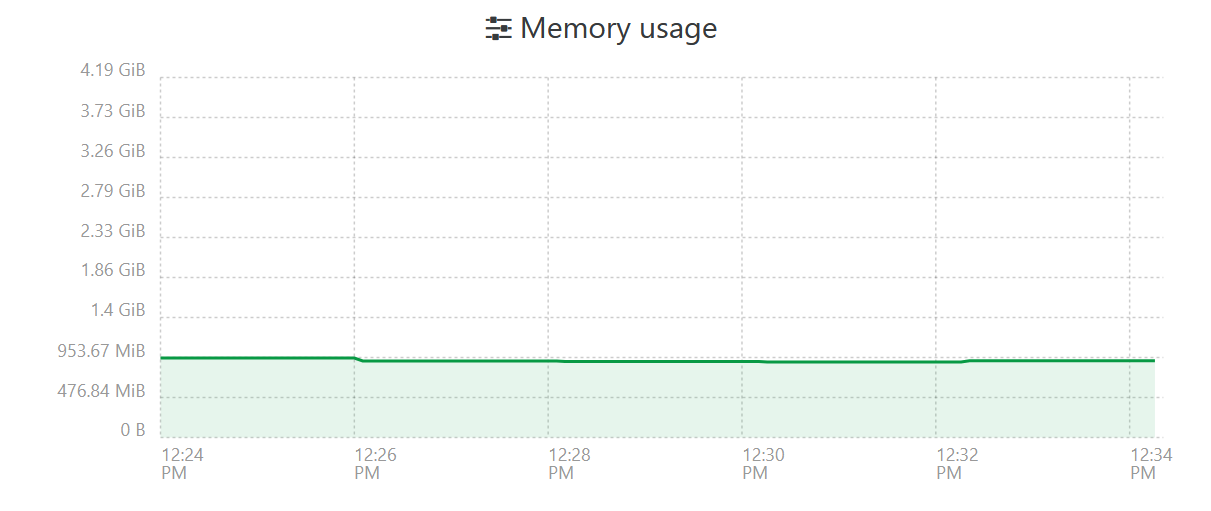
On the right track – approximately 1GB of RAM per 1 million watches.
inotify’s queue requires 1,080 bytes per slot, so 10 files being watched consumes 10,800 bytes. The queue cannot be swapped to disk (virtual memory), so it needs to fit into system RAM. The queue only consumes as much RAM as there are items being watched, so it’s generally fine to overestimate.
The first sudo in the command above isn’t necessary and could cause unintended results the way the command is written. What’s the output from the following command?
grep inotify /etc/sysctl.conf
Although tee is commonly used because it makes for easy to copy-and-paste commands with less risk of nuking an important file, when editing system files, in my opinion, actually seeing the contents of what’s being edited is way more beneficial. To open a file as root for editing:
sudo -e /etc/sysctl.conf
Having said that, like many Linux distros, Debian supports local configs under /etc/sysctl.d, so adding your settings there keeps things neater and protects from potentially being overwritten by future system updates – e.g.:
echo fs.inotify.max_user_watches=2048000 | sudo tee -a /etc/sysctl.d/99-local.conf
- Double-quotes around
fs.inotify.max_user_watches=2048000 aren’t required because there are no spaces and/or other characters reserved by the command shell.
- The destination filename can be almost anything that ends in
.conf.
- Files under
/etc/sysctl.d are loaded in alphabetical order, so it’s common to prefix with a number for flexibility in controlling the processing. A 99 prefix just helps increase the odds that your setting overrides any that came before it.
Either way, after making a change and rebooting, always verify that it actually took effect:
cat /proc/sys/fs/inotify/max_user_watches
Note that max_user_watches is the combined limit for all processes under a single UID, so Syncthing watching 320K files alongside systemd, etc., etc. all take a slice of the digital pie.