Setup: Syncthing Fork on Android, Syncthing v2.0.7 on Windows.
First, I installed everything and transferred a folder of images from my phone to a directory on a Samba share (mounted as a drive with a consistent drive letter). At first, it transferred all the images without any problems, which was great. Then I restarted the computer (I added Syncthing to the task scheduler according to the documentation). Syncthing starts up fine, and I can immediately access the WebGUI, but I am greeted with the following error message:
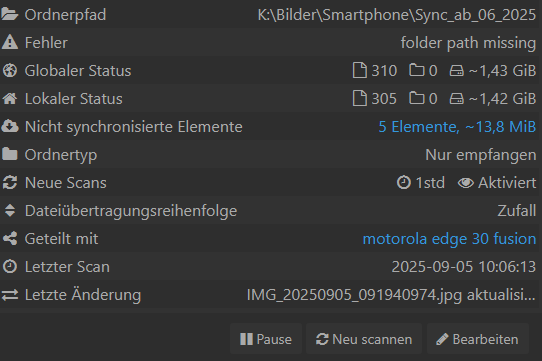
2025-09-05 15:55:45 ERR Failed initial scan (error=“folder path missing” folder.label=ABC folder.id=j6fkb-tzcv5 folder.type=receiveonly log.pkg=model)2025-09-05 15:55:45 WRN Error on folder (error=“folder path missing” folder.label=ABC folder.id=j6fkb-tzcv5 folder.type=receiveonly log.pkg=model)2025-09-05 15:55:45 WRN Folder is in error state (folder=j6fkb-tzcv5 error=“folder path missing” log.pkg=model)
Now here’s the interesting part: When I “restart” Syncthing on my PC, the problem remains. But when I “shut down” Syncthing and then manually start syncthing.exe, synchronization suddenly works again!
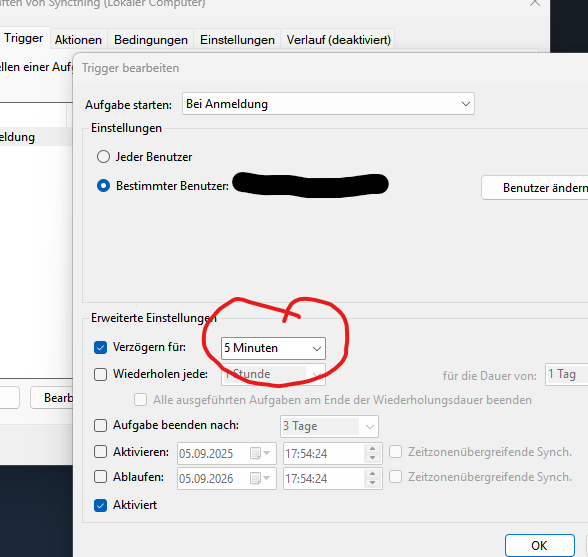
What I’ve tried: Delaying the start of Syncthing. Didn’t help.
It sounds like Syncthing has no access to those paths at the moment you start in (on boot/logon?). This would be why you still end up not having it even after restarting the application, because it’s still the same parent process. If you shut it down and start again, then it does have the access, because the process is started from scratch.
How exactly has Syncthing been installed on Windows?
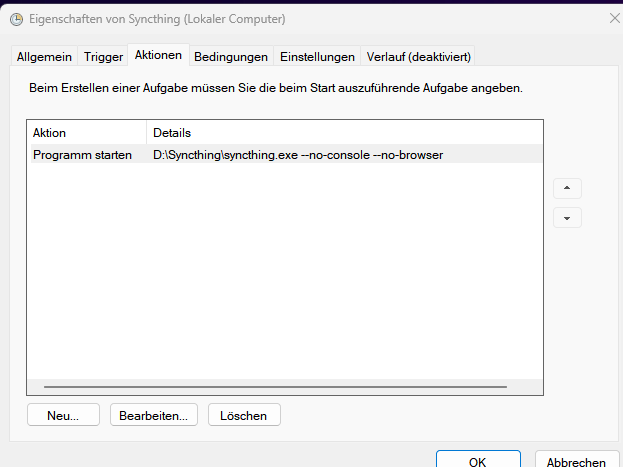
Since your syncthing.exe binary is in a custom location (Bill Stewart’s installer for Windows defaults to a different folder), using an installer/wrapper likely adds an unnecessary layer to your setup. I’d keep things simple by sticking with the official Syncthing package that’s distributed as a Zip archive.
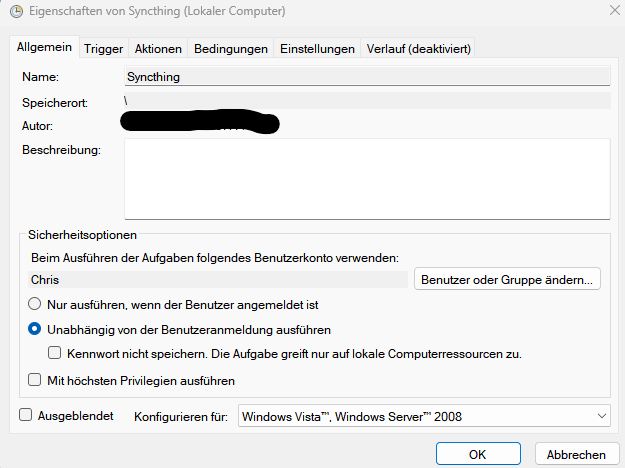
hmmm… your scheduled task is set to start Syncthing even when the user isn’t logged on, but on Windows a mapped network drive isn’t available when the user isn’t logged on, so when Syncthing checks K:, it won’t exist.
(SMB/CIFS shares also add an extra wrinkle because they’re normally only accessible by the user who mapped them – not even an Administrator.)
(Note also that file watching generally doesn’t work across network shares, so Syncthing must rely on its full rescan interval to detect changes.)
There was a time when I really enjoyed spending a long time troubleshooting problems like this :). Unfortunately, that’s no longer the case.
I’ve now removed the folder, uninstalled Syncthing, and on a whim tried again with SyncTrayzor 2.01. And what can I say, it now works without any problems. To be on the safe side, I restarted the computer several times…it synchronizes as it should :).
I can’t say whether this was because SyncTrayzor does something differently during autostart/in the task scheduler.
@gadget: scheduled task is set to start Syncthing even when the user isn’t logged on → That’s what the official documentation told me to do. But after I set the delay to 5 minutes, the process started accordingly late, I tested that.
As a desktop app, SyncTrayzor is loaded after the logon process has completed, which includes reconnecting to any network shares that were in place at the previous logoff, so by the time Task Scheduler launches SyncTrayzor, your K: drive is available for access.
Note that if your SMB network share is password-protected, it requires a user logon because Windows assumes that the logon and SMB network share use the same password.
The advice in the official docs is spot on, likely working for 99 out of 100 users, but there are edge cases where it isn’t enough or doesn’t work.
If the steps are adapted for Linux and macOS (using their equivalents of scheduled tasks), it’d work just fine because SMB / CIFS / Samba network shares can be mounted and available without requiring the user be logged on, but it’s unfortunately normally not the case in Windows.
There are tricks involving Windows Task Scheduler settings and UNCs, but I’m not sure it’d work (or be reliable) with Syncthing.
I would write a batch file (or Powershell script) to map the shares using net use with credentials in Task Scheduler to run at System Startup, and have Syncthing’s Task Scheduler trigger configured with a delay.